
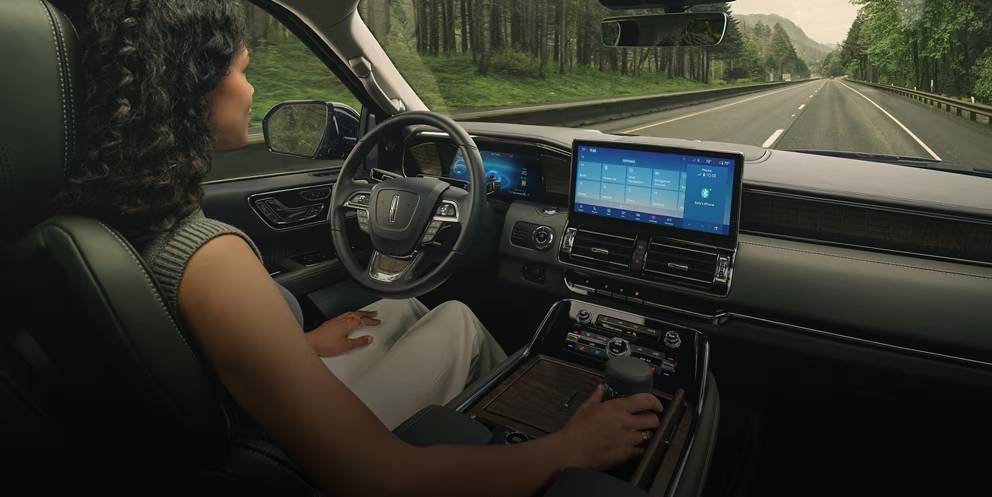
Getting your phone connected to your Lincoln's SYNC system shouldn't feel like solving a puzzle. At our Bakersfield dealership, we walk customers through this process regularly, and once you understand the steps, it becomes second nature. Whether you're driving a newer model with SYNC 4 or have SYNC 3 in your vehicle, connecting your smartphone unlocks hands-free calling, text message read-back, music streaming, and easy access to navigation apps. We've put together this straightforward guide to help you pair your phone quickly and troubleshoot any hiccups along the way. Let's walk through exactly how to connect your phone to Lincoln SYNC, step by step.
What You Need Before Connecting Your Phone to Lincoln SYNC
Before starting the pairing process, make sure you have everything ready. Your phone needs Bluetooth turned on and set to discoverable mode so SYNC can find it. Your vehicle should be running with the SYNC system active on the screen. Having your phone's Bluetooth settings menu open makes the process smoother since you'll need to select SYNC from your device list during pairing.
We recommend checking for software updates on both your phone and SYNC system before beginning. Outdated software causes many connection problems we see at our service center. Taking a minute to update everything saves frustration later. If you're not sure about your SYNC version or how to access settings, your owner's manual provides specific details for your model year.
How to Identify Your Lincoln SYNC Version
Knowing which SYNC version you have determines which pairing steps to follow. SYNC 3 features a touchscreen with a basic layout that's been in Lincoln vehicles for several years. SYNC 4 represents the newer generation, offering a touchscreen interface with built-in wireless Apple CarPlay and Android Auto support.
The easiest way to confirm your version is checking the SYNC settings menu on your touchscreen. Look for an About or System Information option that displays the version number. Your owner's manual also lists the specific SYNC generation installed in your vehicle. If you're still not sure after checking, our team at Jim Burke Lincoln can quickly identify your system version when you visit.
How to Connect Your Phone to Lincoln SYNC 4
Pairing Your Phone via Bluetooth on SYNC 4
SYNC 4 makes connecting straightforward with its intuitive touchscreen interface. Here's how to get it done:
-
Turn on your phone, start your vehicle, and make sure the SYNC system displays on your screen.
-
Enable Bluetooth on your phone and make it discoverable to nearby devices.
-
On the SYNC touchscreen, select Add Device or Add Phone from the Bluetooth menu.
-
SYNC displays a six-digit PIN on the screen (remember this number).
-
On your phone, search for available Bluetooth devices and select SYNC from the list.
-
Confirm the PIN matches on both your phone screen and the SYNC display.
-
Accept the pairing request on both your phone and the SYNC touchscreen.
-
When prompted, select Yes to download your phonebook and enable hands-free features.
You'll see confirmation messages on both screens once pairing succeeds. The whole thing typically takes under two minutes when everything goes smoothly.
Enabling Phone Features and Permissions
After completing the initial pairing, SYNC asks permission to access your contacts, messages, and call history. Granting these permissions enables the system to display caller names, read text messages aloud, and provide voice-activated dialing using contact names. Without these permissions, you'll need to manually dial numbers or won't see who's calling.
Your phone may also prompt you separately to allow SYNC access to these features. Accept all permission requests to unlock the full hands-free experience. You can adjust these settings later in your phone's Bluetooth menu if needed, but enabling everything from the start is highly recommended for maximum convenience.
How to Connect Your Phone to Lincoln SYNC 3
Pairing Your Phone via Bluetooth on SYNC 3
SYNC 3 follows a similar pairing process with slight menu differences. Here's the breakdown:
-
Turn on your phone, start your vehicle, and confirm the SYNC system is active.
-
Enable Bluetooth on your phone and set it to discoverable mode.
-
On the SYNC touchscreen, navigate to Settings, then Phone, then select Add Phone.
-
SYNC displays a six-digit PIN on the screen.
-
On your phone, search for Bluetooth devices and select SYNC when it appears.
-
Confirm the PIN matches on both devices and accept the pairing request.
-
Select Yes when prompted to download your phonebook.
The touchscreen shows a progress indicator while SYNC syncs your contact list. This usually wraps up within 30 seconds depending on how many contacts you have stored.
Setting Up Hands-Free Calling and Audio
Once your phone pairs successfully, test the connection by making a call using voice commands. Press the voice button on your steering wheel and say a contact name to verify SYNC recognizes your phonebook. The system should dial the number and route audio through your vehicle's speakers.
For audio streaming, open your favorite music app and start playback. Sound should automatically route through SYNC once the phone connects. If you're not hearing audio, check your phone's Bluetooth audio settings to confirm SYNC is selected as the output device. You can also adjust volume and playback controls directly from the SYNC touchscreen or steering wheel buttons.
Quick Tips for Older Lincoln SYNC Systems
Earlier SYNC generations work slightly differently than newer versions. These older systems may require you to manually enter a PIN, typically "0000," instead of displaying one automatically on screen. If you see a prompt asking for a code during pairing, try entering those four zeros.
Older SYNC systems typically allow one phone to connect at a time for calls, though some models may remember multiple devices. Before adding a new phone, delete old devices from both your SYNC memory and your phone's Bluetooth list. This prevents conflicts and keeps pairing smooth. We regularly help customers at our Bakersfield location clear out old connections and set up their current devices properly.
Troubleshooting When Your Phone Won't Pair With Lincoln SYNC
Common Bluetooth Connection Issues
When pairing fails, a few typical culprits are usually responsible. The most frequent issue is Bluetooth not being fully enabled or your phone not set to discoverable mode. Double-check both settings on your device before trying again. Another common problem involves too many paired devices stored in SYNC's memory or your phone's Bluetooth list. Both systems have limits on saved connections, and exceeding those limits blocks new pairings.
Mismatched PINs or pairing timeouts also cause connection failures. If the six-digit codes don't match exactly on both screens, pairing won't complete. The pairing window only stays open briefly, so if you take too long entering information, the attempt times out. Finally, outdated software on either your phone or SYNC system creates compatibility problems that prevent successful connections.
Simple Fixes to Try Before Visiting the Dealership
Start troubleshooting by toggling Bluetooth off and back on using your phone's settings. This simple reset often resolves temporary glitches. Next, delete SYNC from your phone's Bluetooth device list and delete your phone from SYNC's paired devices menu. Removing both sides completely gives you a clean slate for fresh pairing.
Restart both your phone and vehicle to clear temporary system errors. Power your phone completely off, then turn it back on. Turn your vehicle off, wait 30 seconds, and restart it. Try reverse pairing if standard methods fail (initiate the connection from your phone's Bluetooth menu by selecting SYNC first, rather than starting from the SYNC touchscreen). This alternative approach sometimes works when the normal process doesn't.
Update your phone's operating system and check for SYNC software updates through the settings menu. If SYNC prompts you for a PIN and nothing appears on screen, try entering "0000" as a default code. Check your phone's app permissions to make sure Bluetooth has access to contacts and messages. These simple fixes resolve most connection problems without needing professional help.
Get Lincoln SYNC Help at Jim Burke Lincoln
If you've tried these troubleshooting steps and your phone still won't connect, our service team at Jim Burke Lincoln is ready to help. We regularly assist customers with SYNC connectivity, Bluetooth setup, software updates, and complete system diagnostics. Sometimes persistent pairing issues indicate outdated SYNC software that needs professional updating, or compatibility problems requiring dealer-level diagnostics.
Call us at 661-835-6144 to schedule a service appointment. Our technicians can quickly identify what's blocking your connection and get your phone paired properly. We also handle SYNC software updates, which Lincoln periodically releases to improve performance and fix known bugs. Keeping your system current prevents many common connection headaches.
Visit Jim Burke Lincoln to learn more about our service offerings or schedule your appointment online. Whether you need hands-on help with initial pairing or you're experiencing ongoing Bluetooth problems, we're here to make sure your Lincoln's technology works seamlessly with your devices. Getting your phone connected shouldn't be complicated (let us make it easy).